How to add Afterglow to your Thank you and Order status pages
Turn your Afterglow blocks on, add the app block to both pages in Shopify's checkout editor, save, and check it with a test order.
You add Afterglow in two places. First you turn each block on in the Afterglow app in your admin. Then you open Shopify’s checkout and accounts editor and add the Afterglow app block to your Thank you page and to your Order status page, and save. A block that is turned on but not added to a page shows nothing there.
The four blocks and the page each one is for
An app block is a piece of an app that you place on a page in Shopify’s checkout and accounts editor. You add it, move it, and save it, the same way you add a section in your theme editor.
Afterglow has four blocks:
| Block | What shoppers see | Where it shows | Afterglow plan |
|---|---|---|---|
| Post-purchase survey | One or more questions after checkout | Thank you page only | Free, up to 100 responses a month; Starter removes the limit |
| Custom content | A heading and a short message | Any page you add the block to | Free |
| Order tracking | A delivery status line | Order status page (also Thank you, if you add the block there) | Growth, $29/month |
| Referral & discount | A discount code | Any page you add the block to | Pro, $49/month |
These are Afterglow’s plans, not your Shopify plan. Afterglow works on Basic, Shopify and Advanced as well as Plus. Paid Afterglow plans have a 14-day free trial, and the price is flat: you are not billed by order count.
Why you add the block twice: the Thank you page and the Order status page are separate pages in the editor, and adding a block to one does not add it to the other. The survey block is built for the Thank you page and never appears on the Order status page. Order tracking belongs on the Order status page, the page customers come back to while they wait for delivery. The custom message and the referral code can appear on either page, so if you want them in both places, add the app block to both.
Step 1: Turn your blocks on
- Install Afterglow from the Shopify App Store, then open it from Apps in your admin.
- Open Blocks. Each block has an Enabled switch and an Order column.
- Turn on the blocks you want, and use the arrows to set the order they appear in.
- Open a block’s Manage link to set it up. Add at least one question to the survey, type a message for custom content (the heading is optional), and give the referral block either a fixed code or a unique code per order.
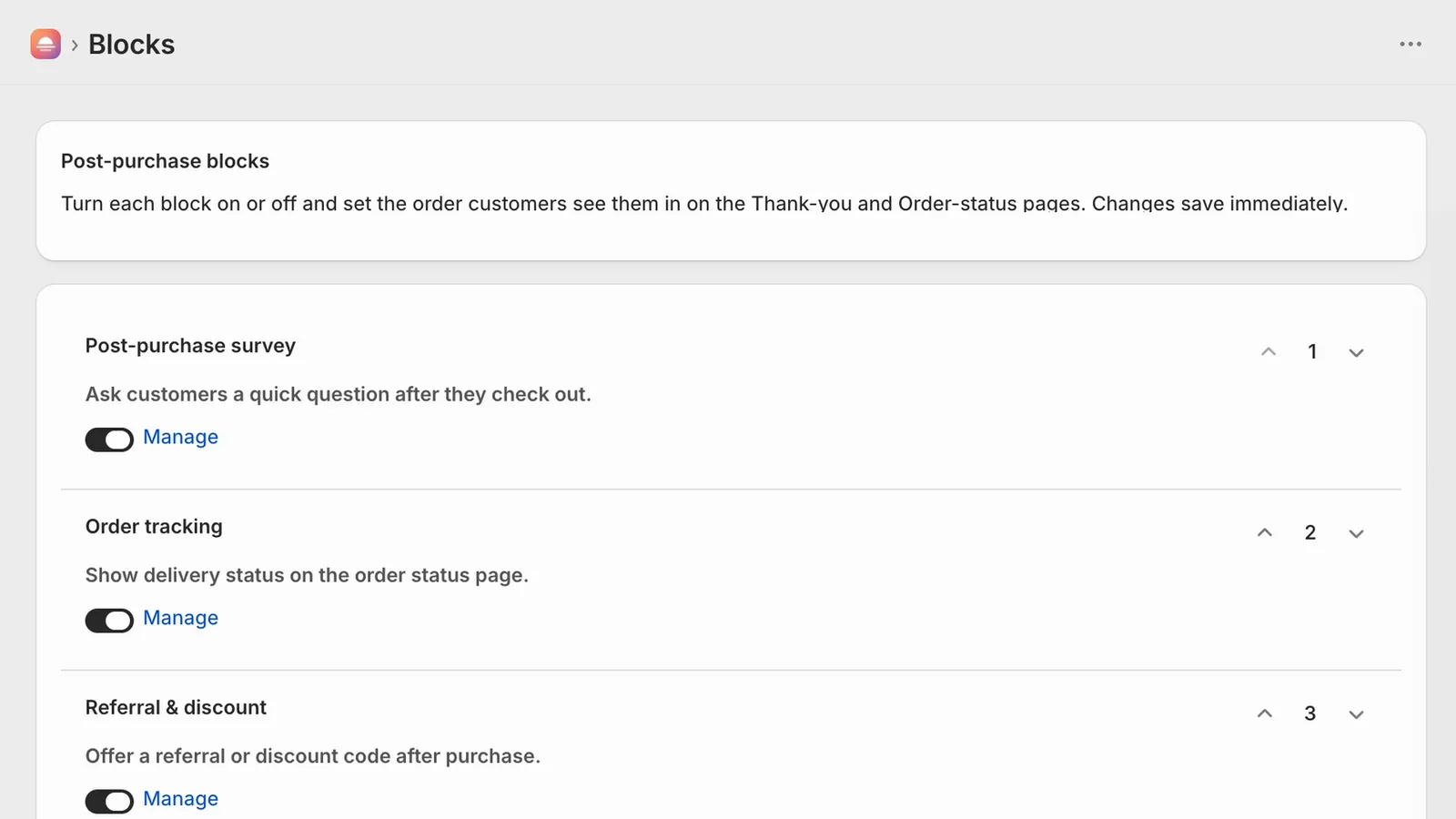
Your changes save immediately.
Step 2: Add the app block to your Thank you page
- From your Shopify admin, go to Settings › Checkout. (Afterglow’s Get set up checklist also has an Open checkout editor button that takes you to the same editor.)
- In the Configurations section, click Edit next to your checkout configuration. This opens the checkout and accounts editor.
- In the page selector at the top, choose Thank you.
- Click Add block, then choose Afterglow post-purchase blocks. (On the Order status page, the block is called Afterglow order-status blocks.)
- Drag the block to where you want it, or use the move buttons.
- Click Save.
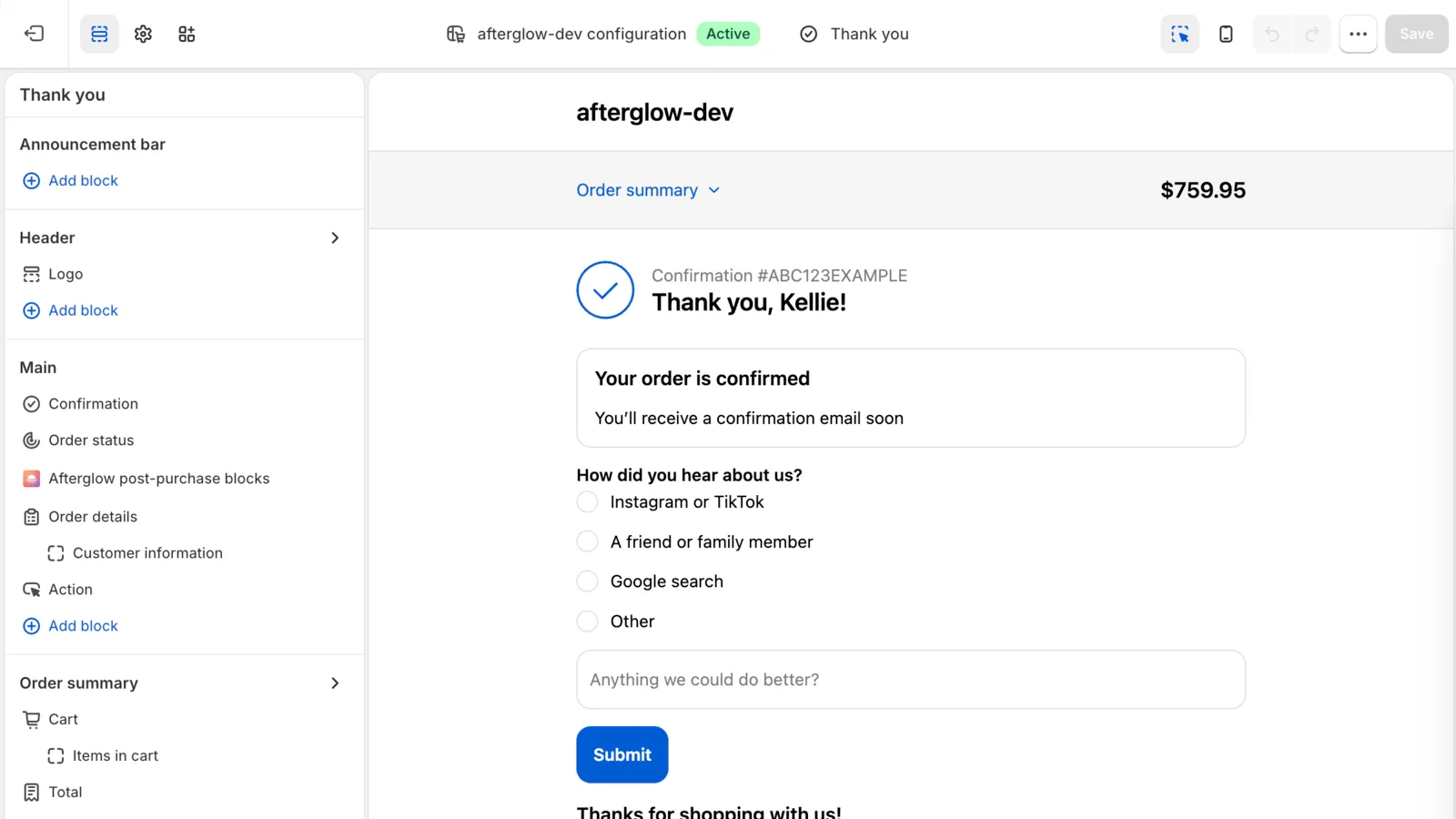
Afterglow asks Shopify to place the Thank you block for you when you install it, so it may already be there. If it’s already in the Sections list, don’t add it again.
Step 3: Add the app block to your Order status page
Repeat the steps above, but choose Order status in the page selector. This is the step merchants miss, because the editor does not copy blocks between pages. Click Save again.
Step 4: Check it with a test order
Place an order on your storefront to see the pages as a customer does. To do it without a real payment, go to Settings › Payments, turn off your current card gateway, and activate the Test payment gateway. At checkout, enter Test payment gateway as the name on the card, 1 as the card number, any future expiry date and any 3-digit security code, with an order total over $1. Answer the survey on the Thank you page, then open the Order status page from the order confirmation email to check the block there. Switch your real gateway back on afterwards. The Get set up checklist in your Afterglow admin ticks off each step as it completes.
If you turned the block on but nothing shows
- The block is not added to that page in the checkout editor, or you did not click Save. The Added tab in the editor’s Apps sidebar shows which pages each block is on.
- The block is switched off on the Afterglow Blocks page.
- The block has no content yet. A survey with no questions, a custom message with no text, a fixed referral code left blank, and order tracking with no fulfillment data all render nothing.
- The block is not in your Afterglow plan. Locked blocks cannot be switched on, and the Blocks page shows Not included in your current plan.
- Your Free plan has used its 100 survey responses for the month. The survey hides until the quota resets.
- You are looking at the wrong page. The survey shows on the Thank you page only.
- On the Order status page, the block appears for customers who arrive from their order notification or who are signed in. Shopify doesn’t show app blocks on the public version of the page that anyone with the link can open after the link expires.
- Your store still uses legacy customer accounts. Shopify’s developer docs say customer account extensions, which is what Afterglow’s Order status block is, run only on the new version of customer accounts. Shopify deprecated legacy accounts on February 26, 2026. If the Order status block is missing, check Settings › Customer accounts.
- You’re judging by the editor preview. It can’t place orders, so check the live pages with a test order.
What Afterglow does not do here
Afterglow adds these four blocks and nothing else on these pages. It does not do conversion tracking or ad pixels, and it does not use ScriptTags or edit your theme. If you need to replace an old additional script for tracking, that is an app pixel or a custom pixel in Settings › Customer events, not a block. And the survey only appears on the Thank you page, which a customer sees once; if they close it, there is no second chance to ask.
Sources
- Using the checkout and accounts editor (Shopify Help Center), checked October 11, 2026
- Customizing your checkout and customer accounts with apps (Shopify Help Center), checked October 11, 2026
- Test checkout UI extensions (Shopify Dev), checked October 11, 2026
- Checkout UI extensions (Shopify Dev), checked October 11, 2026
- Building apps for customer accounts (Shopify Dev), checked October 11, 2026
- About the Order status page (Shopify Dev), checked October 11, 2026
- Non-Plus: Upgrading and replacing your Thank you and Order status pages (Shopify Help Center), checked October 11, 2026
- Activating a payment gateway in test mode (Shopify Help Center), checked October 11, 2026
- Pixels overview (Shopify Help Center), checked October 11, 2026
- Customization options for Thank you and Order status pages (Shopify Help Center), checked October 11, 2026
- Upgrading to customer accounts from legacy customer accounts (Shopify Help Center), checked October 11, 2026